
Folders by date and by album
Every photo sits in a folder for its year and month. Your albums appear as they are in Photos, inside the folders you keep them in, along with smart albums such as Favorites.

For the Mac
PhotosFS puts your Photos library on your Mac as a disk. Every photo and video on it is an ordinary file, so any app can open, copy or read it without exporting anything first.
Coming to the Mac App Store
Requires macOS 27 or later
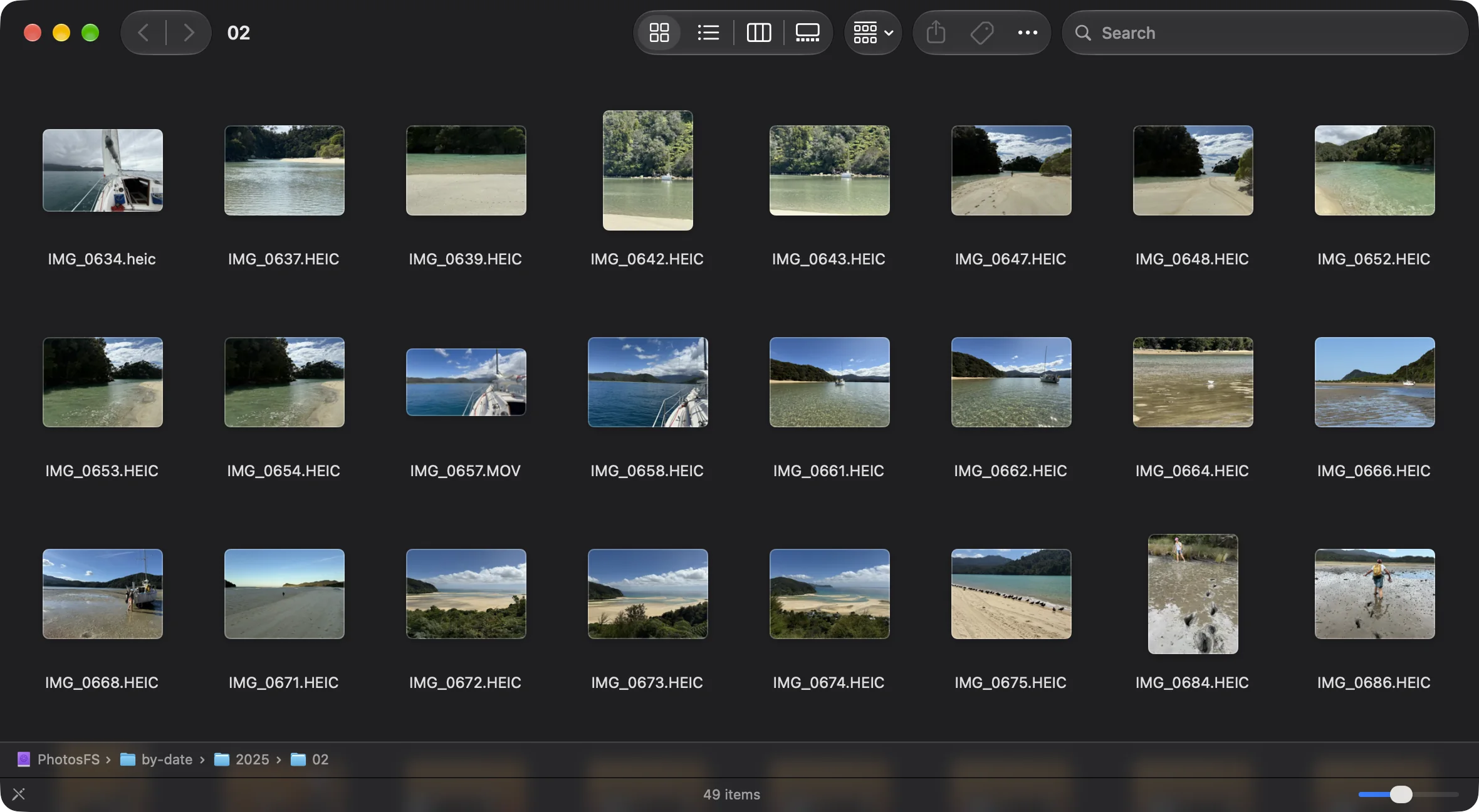
Every photo sits in a folder for its year and month. Your albums appear as they are in Photos, inside the folders you keep them in, along with smart albums such as Favorites.
Edited photos appear as you edited them, with the untouched original in an "original" folder beside them. Live Photo movies and the other half of a RAW+JPEG pair sit next to their still, so nothing the camera recorded is left out. Finder hides the Live Photo movies, so each photo appears once, while scripts and backups still get them.
When you import, edit or reorganise in Photos, the disk follows within moments, without remounting. Filenames stay the same from one day to the next, so scripts, bookmarks and backups keep working.
Open photos straight from Preview, Pixelmator, Lightroom or Final Cut, or work with them in Terminal with rsync, ffmpeg or exiftool. A photo that appears in several albums is the same file each time, so a backup copies it once.
A metadata.jsonl file at the top of the disk lists every photo with its dates, size, dimensions, rating, caption, keywords, albums and path, one line each, ready for scripts and spreadsheets.
Because the disk is read-only, nothing can be edited, moved or deleted through it, and PhotosFS only ever reads your library. Spotlight is kept away from the disk, so mounting it doesn't start a reindex of your whole collection.
PhotosFS lives in the menu bar, with no Dock icon and no window to keep open. It can mount the disk automatically and open at login, so your library is there whenever you need it.
The menu shows the index, what is downloading and how much the download cache holds. About PhotosFS lists each setup step with a tick once it's done, and a button for any step still to do.
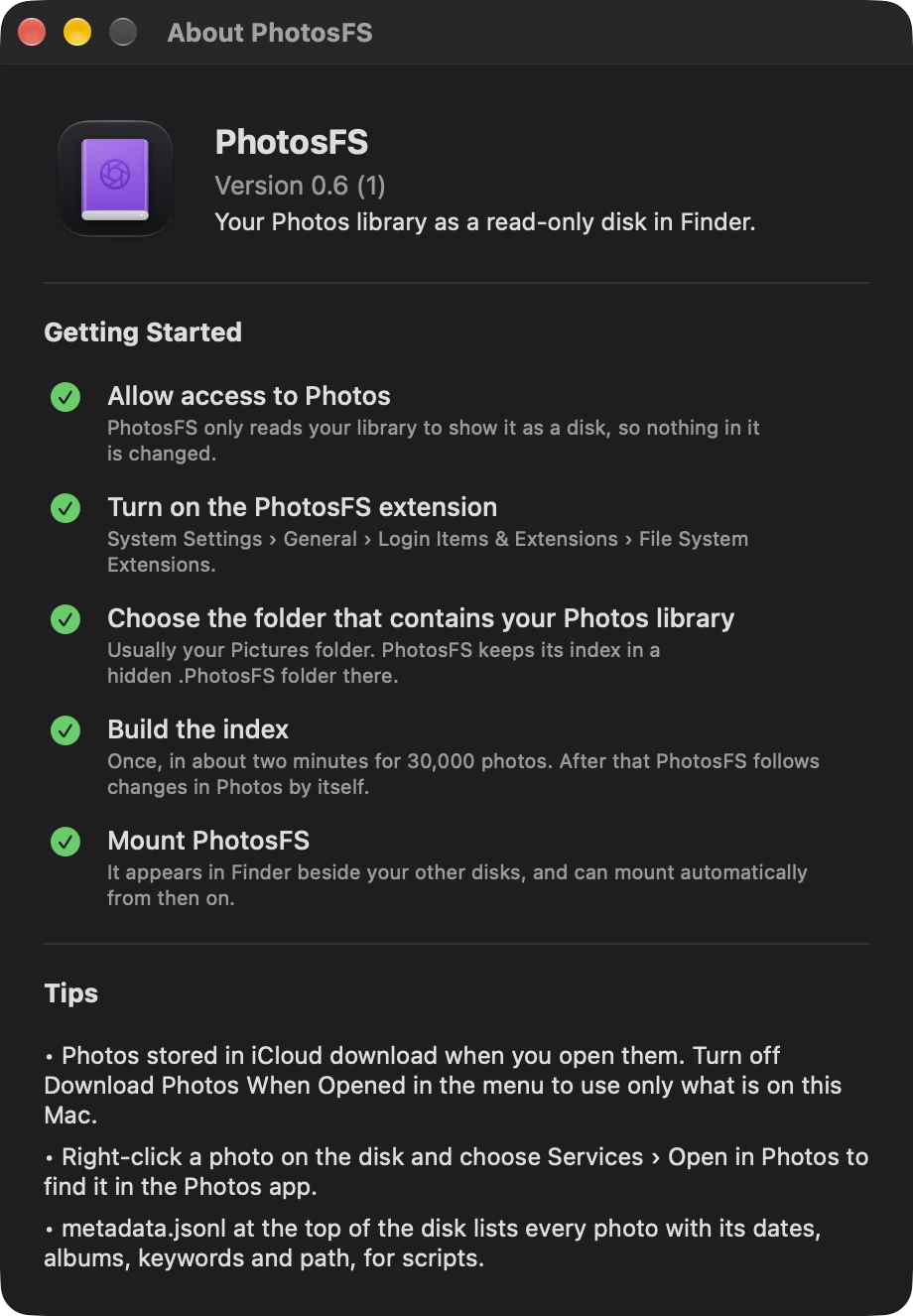
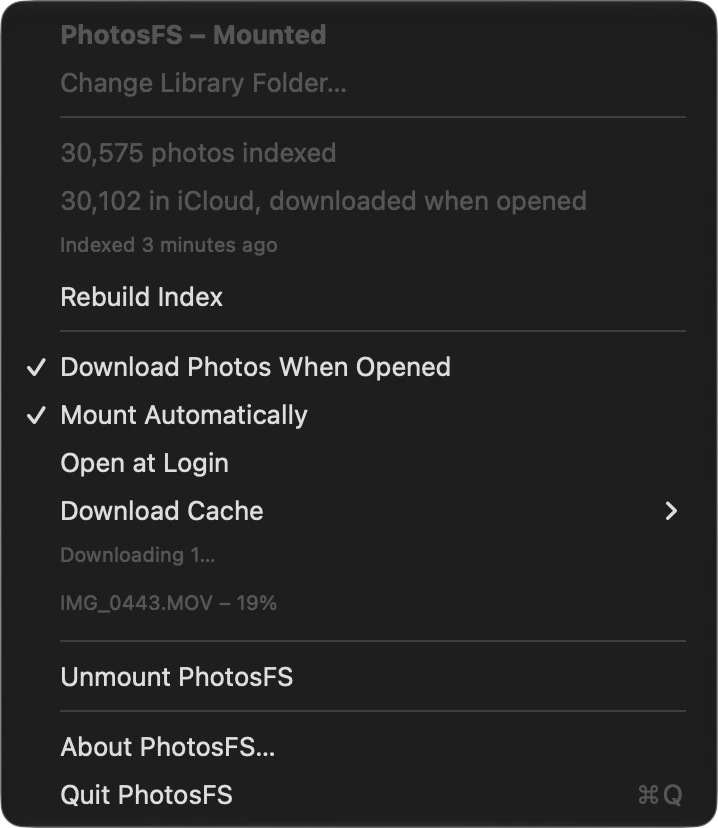
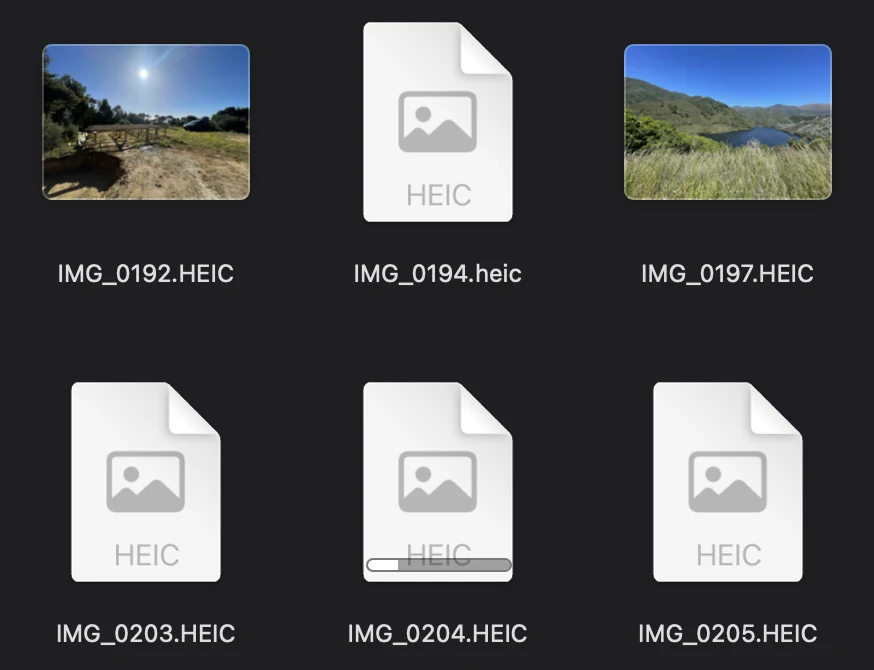
If you use Optimize Mac Storage, photos kept in iCloud still appear on the disk, and PhotosFS downloads one when you open it. Finder draws a progress bar under the file while it downloads, and the menu bar lists it.
Downloads stay in a cache, so a photo opens instantly the next time. You can set the cache size, clear it, or turn downloading off to work only with what is already on your Mac.
The disk is a real file system, built on FSKit, Apple's framework for file systems that run as app extensions. There is no kernel extension to install and nothing to approve in Recovery. The file system runs as a sandboxed extension inside the app, which you switch on in System Settings, and the app reads your library through Apple's Photos framework.
PhotosFS then builds its index once, in about two minutes for 30,000 photos, and mounts the disk. From then on it follows changes in Photos by itself.